 Rollside
Available now on iPhone. Free to download with up to three saved scripts. Optional one-time Pro purchase for unlimited saved scripts. No subscription. Requires iOS 16.4 or later.
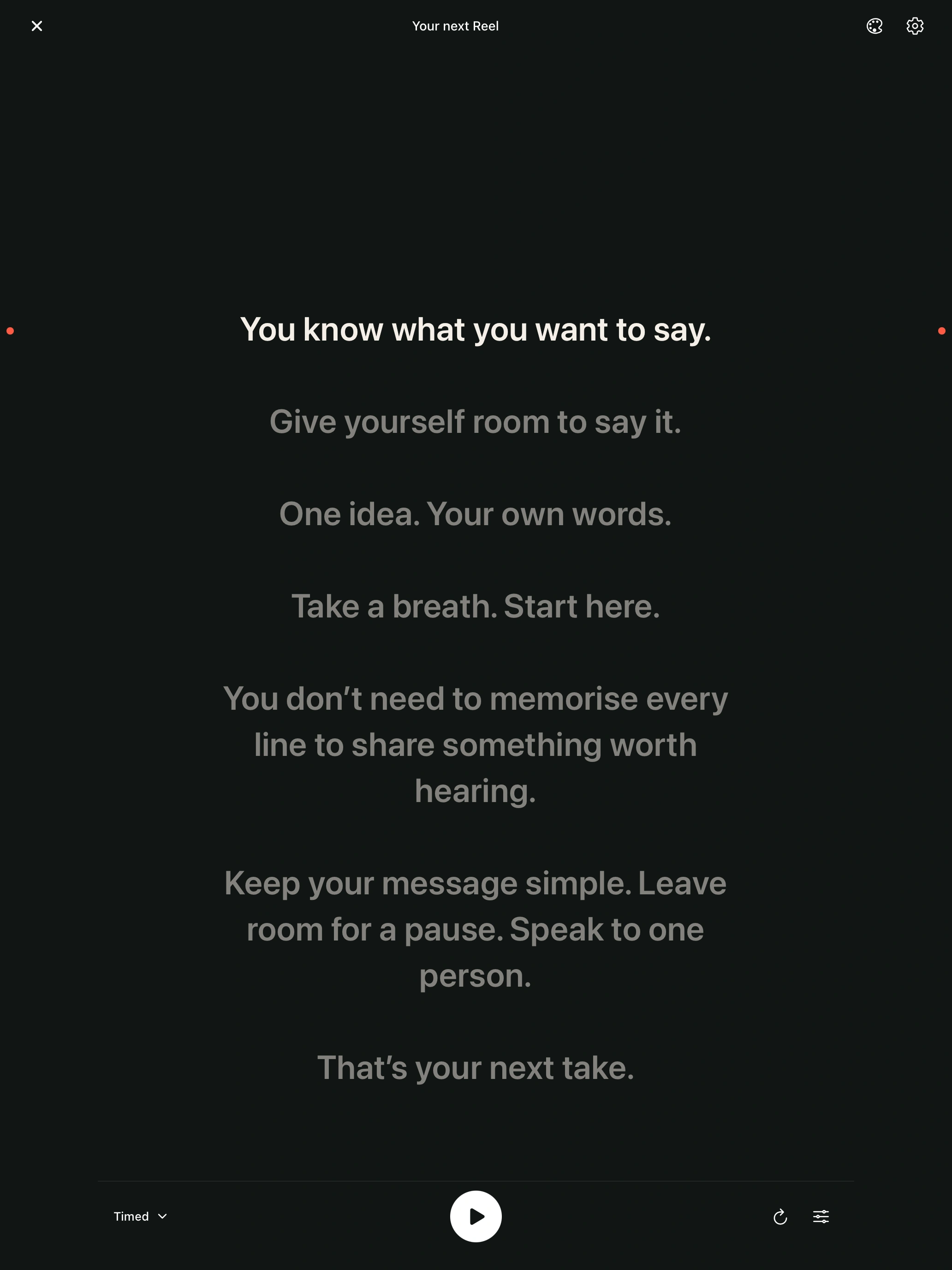
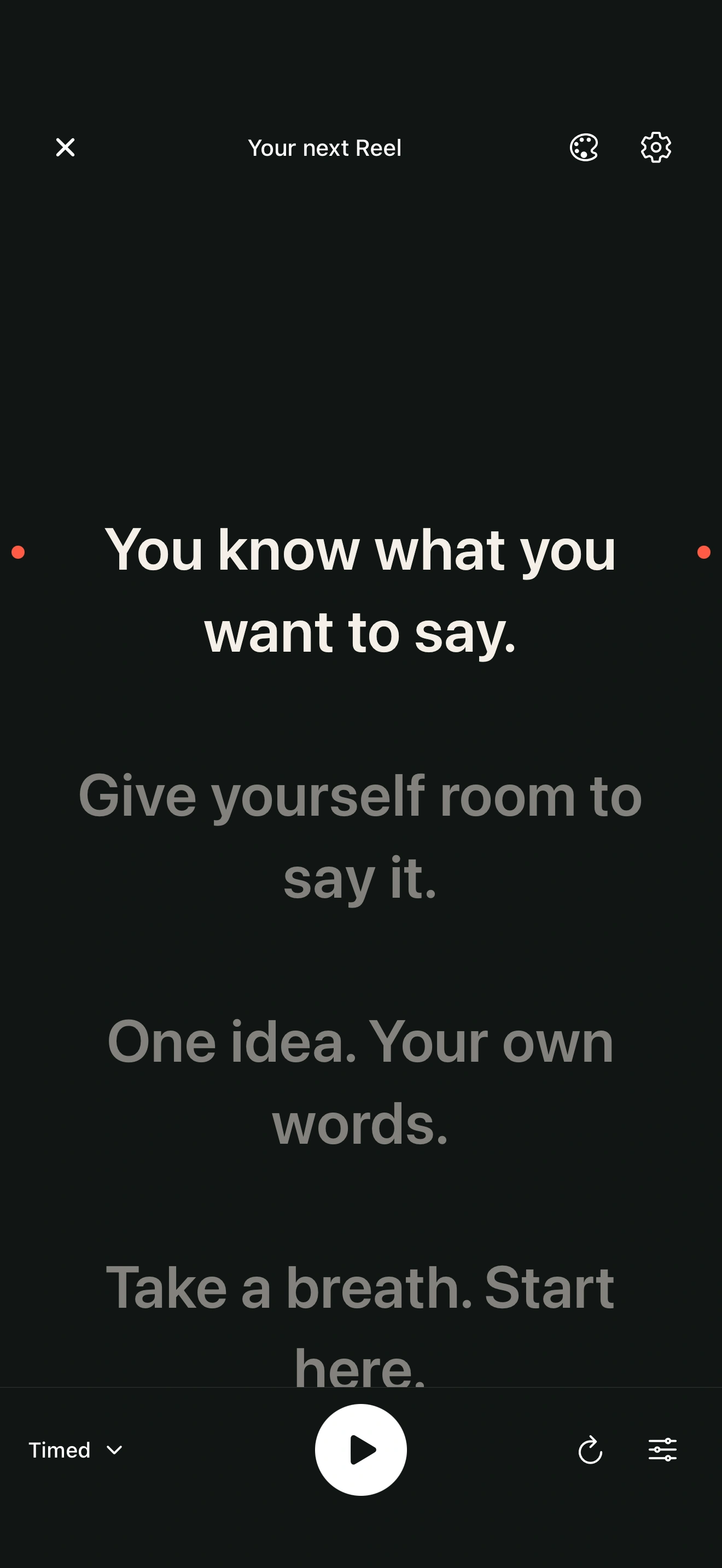
Move the reading area closer to the lens.
A LITTLE TURN. A WIDER VIEW.
Your words.
A little more room.
Portrait when you’re close.
Landscape when you want to spread out.
Your place stays with you.
YOUR SCRIPT. CLOSE TO THE LENS.
Keep your words close.
Keep the connection.
Place your reader just below your filming phone, with a narrow reading area right at the top. Your next words stay close to the lens.
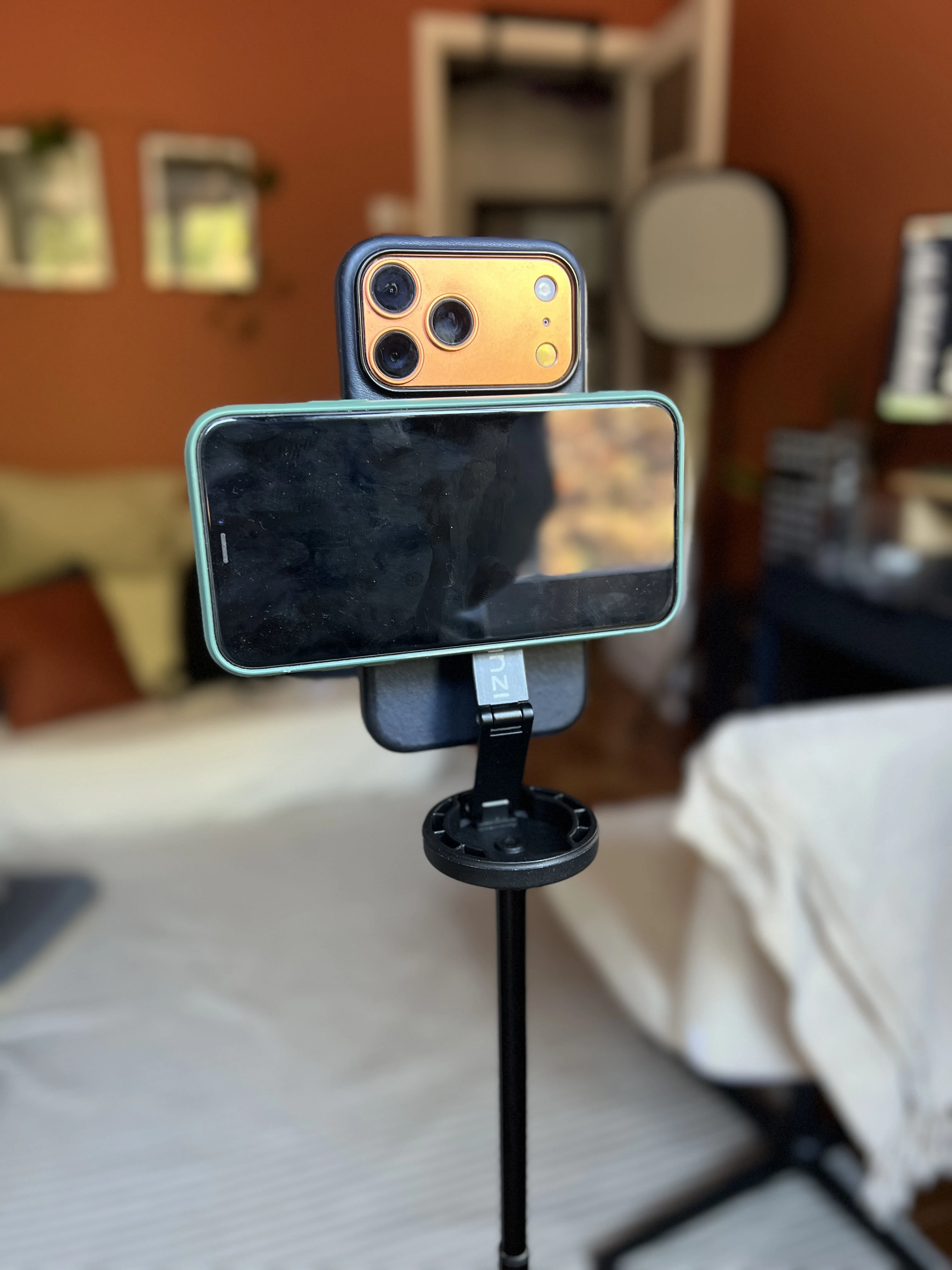
Less searching for your place. More room to speak.
The next update brings a clean script library and a quieter reader to iPhone and iPad. Keep one, two or three lines in focus, soften the words around them and use two coral dots to find the reading area at a glance.
Choose Pure, Studio or another ready-made reading style, then fine-tune it with Apple’s colour picker. The script preview stays in view while you adjust, so you can see what feels right before your next take.
Version 1.2 has been submitted to Apple for review. iPad support and the new design will arrive with that update; the App Store currently offers the existing iPhone version.
A LITTLE MORE ROOM TO READ
Find a comfortable view.
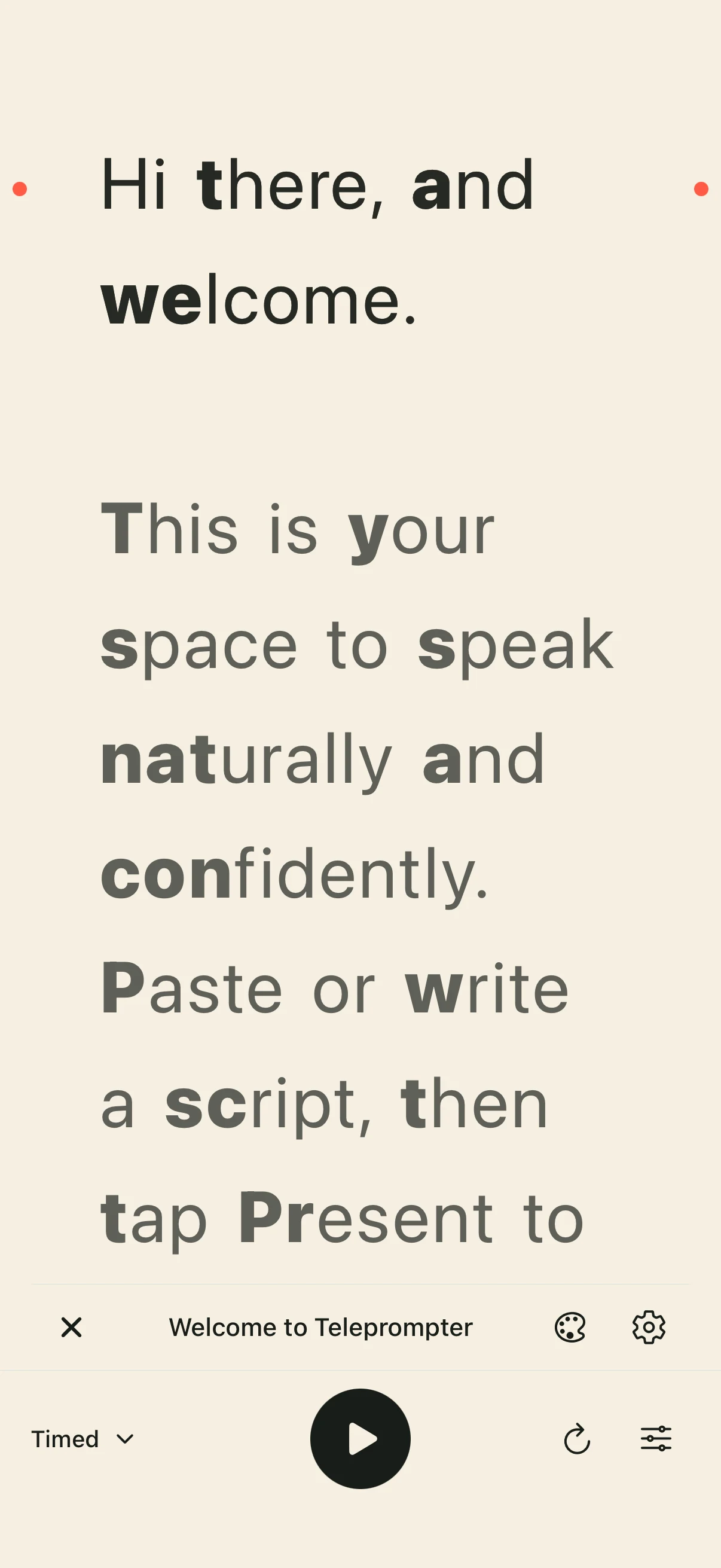
Easy reading Light and Dark give you two starting points for a comfortable view. Try warm cream or soft charcoal, larger text, generous spacing and two lines in focus. Adjust them to suit your preferences.
Warm cream. Soft, dark text.
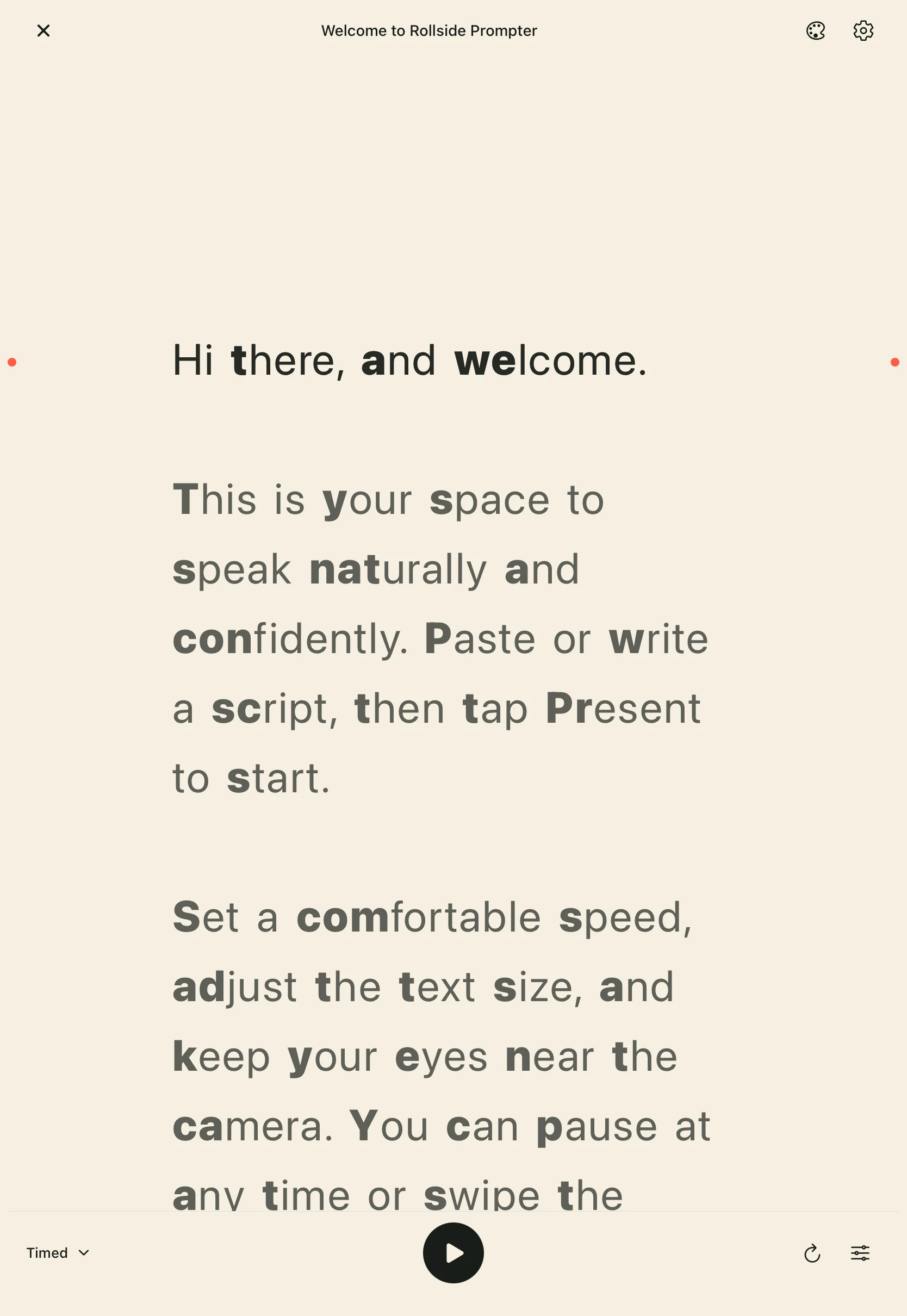
Soft charcoal. Warm, light text.

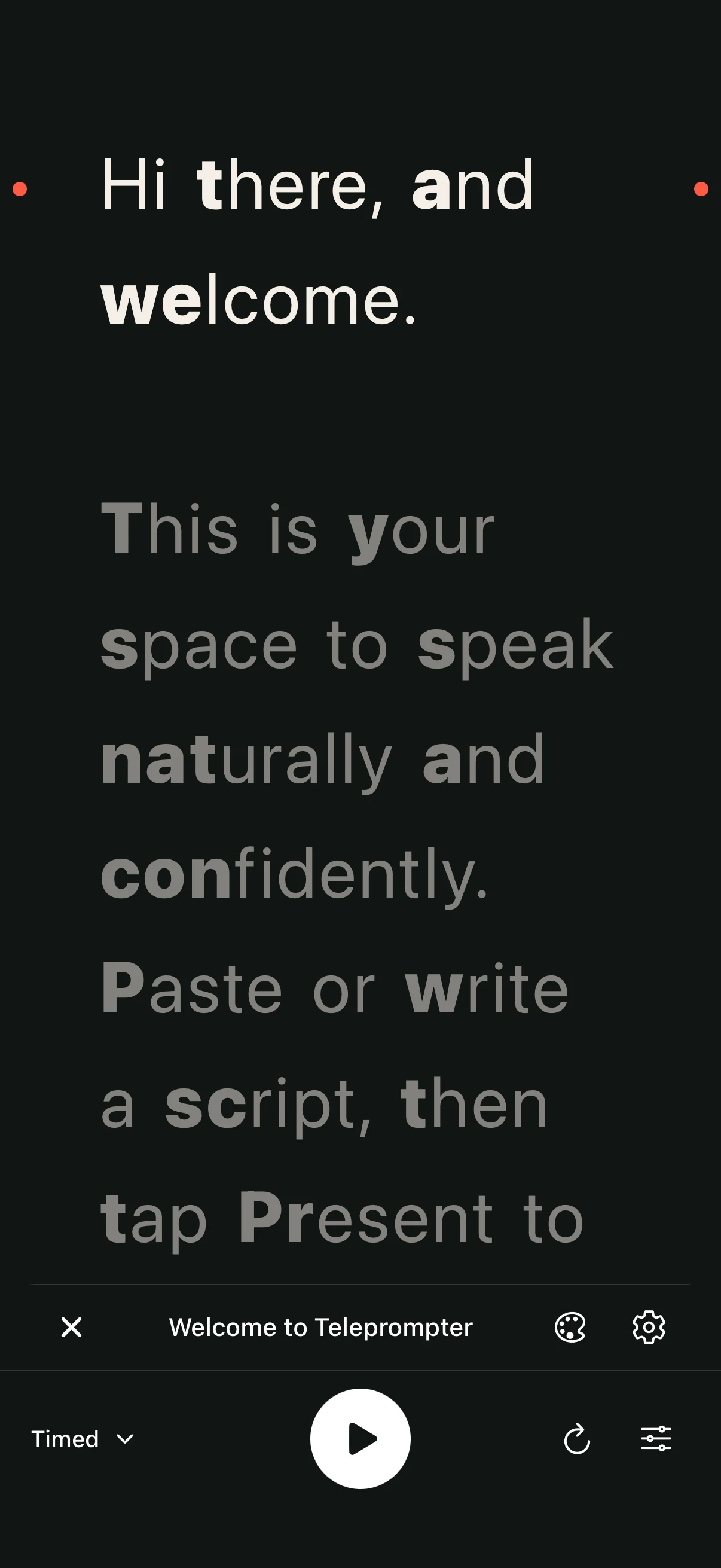
Switch between warm cream and soft charcoal in Reading style. Fine-tune the font, text size, letter and word spacing, and reading width. Optional word emphasis makes the beginnings of longer words bolder. Try it if you prefer the look, or leave it off; your choice stays with you when you switch presets. These options are about personal comfort, with no promise of faster reading or proven benefits for dyslexia.
Free in the next update. Both presets and all reading adjustments are included without Pro. Version 1.2 is with Apple for review and available to existing TestFlight testers on iPhone and iPad. Actual app captures shown above.
From your first idea to your next take.
You have something worth saying. Give yourself a clear script, a comfortable view and room to rehearse it in your own voice.
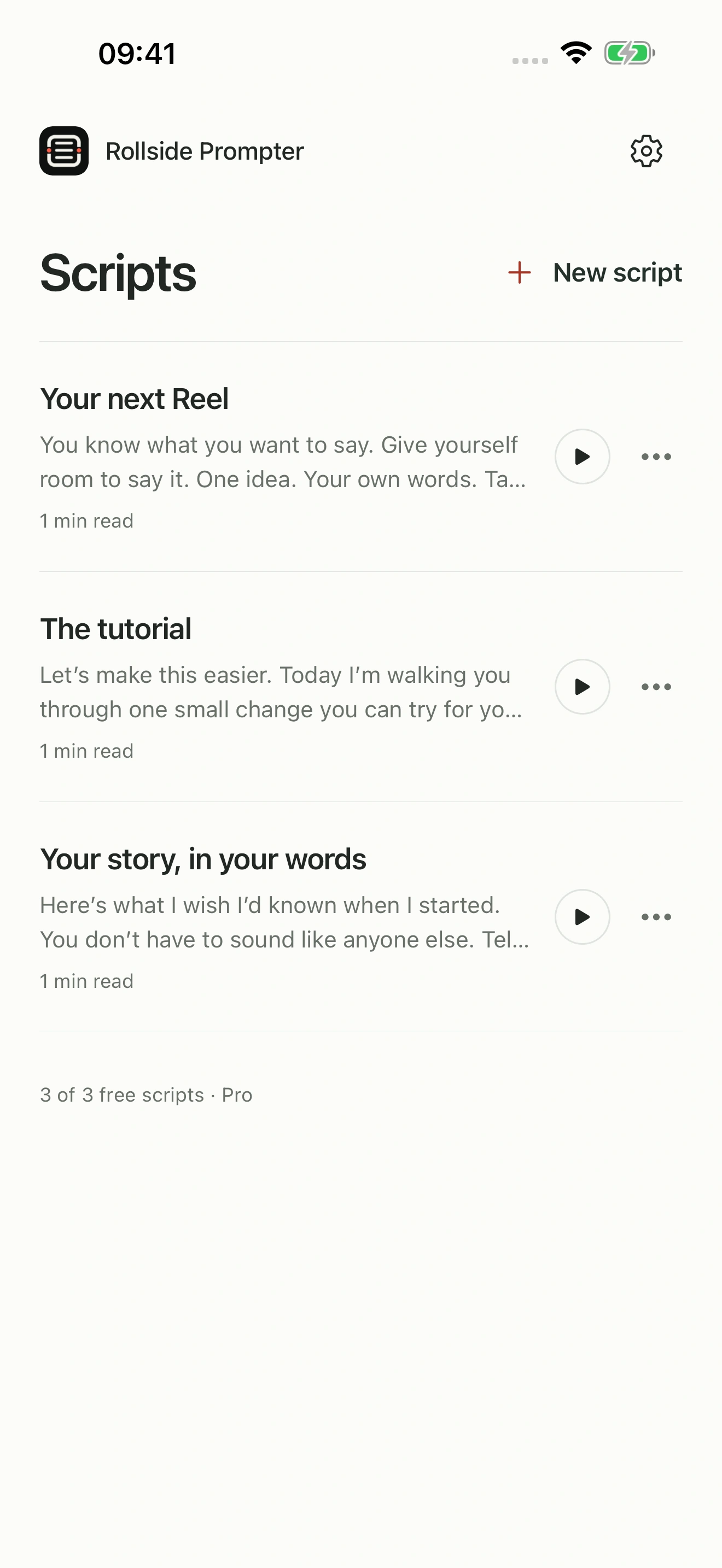
Your ideas, ready to go.
Keep your Reels, tutorials and stories together. Open the script you need for your next take.
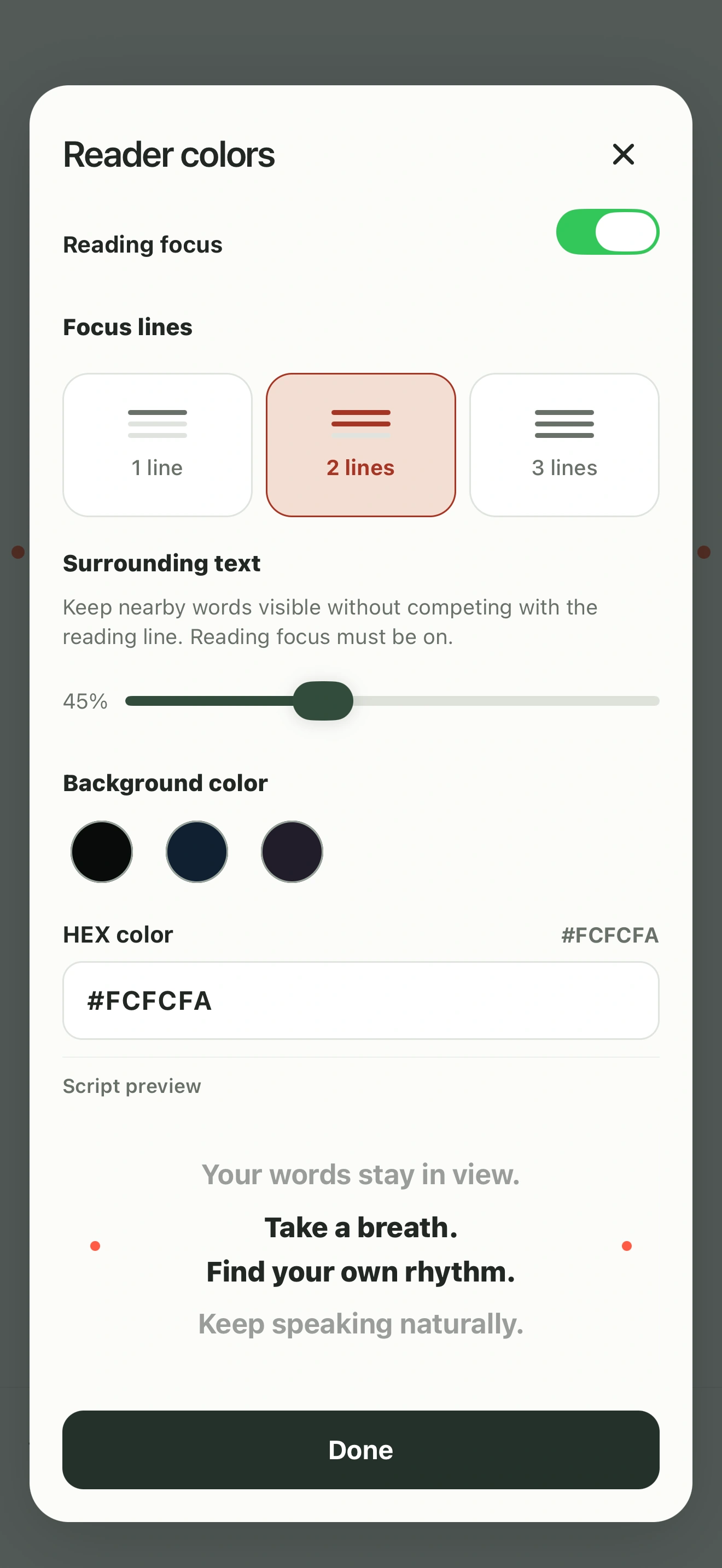
A view that feels right.
Soften the surrounding words. Adjust your colours. See each change in the preview as you make it.
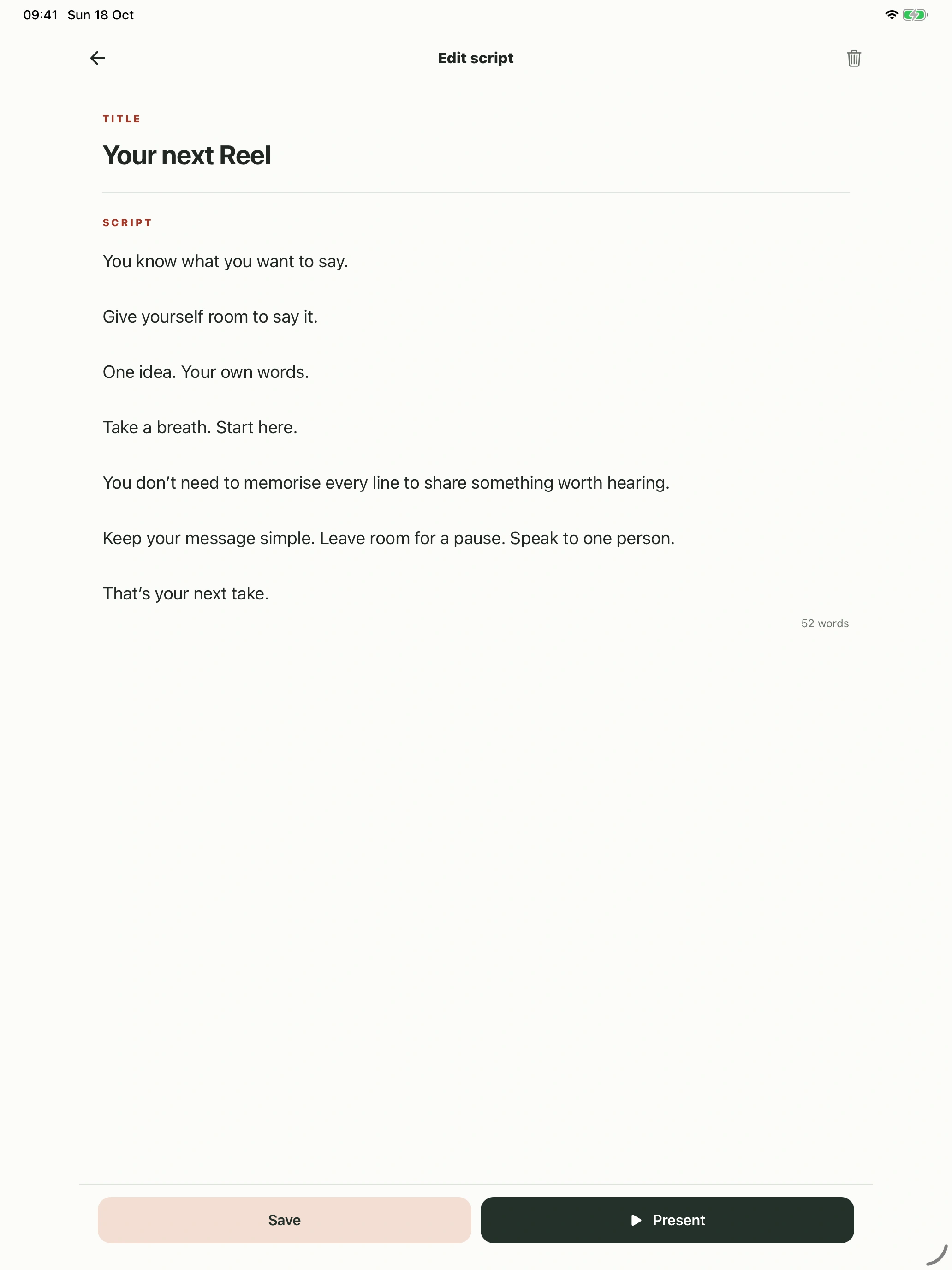
Make it sound like you.
Write, paste and refine your words on iPhone or iPad before you step in front of the camera.
Explore the screens →
Your next line, right where you need it.
Losing your next line can break a good take. Paste your script, set a comfortable scrolling speed and rehearse it out loud. A starting countdown gives you a moment to settle in; play, pause and restart keep you in control. Make the words easy to scan with text size, line spacing and reading width.
Reading focus and cue marks help you keep your place. Choose your background, text and active-line colours. Portrait, landscape, mirror mode and right-to-left text are supported.
Leave room for a pause.
Voice follow moves the script as you speak and pauses when you stop. It requires iOS 18 or later, a supported iPhone and an available on-device speech language. Microphone access is required, plus Speech Recognition permission on iOS 18–26. A language-model download may be needed.
Speech is processed on your iPhone and audio is not saved. Voice follow is included in the free reader; Pro unlocks unlimited saved scripts. Timed scrolling remains available when Voice follow is unavailable.
Get comfortable before you hit record.
Use portrait or landscape to suit your setup. Set an optional rehearsal target from 30 seconds to ten minutes and track your progress. Compatible keyboard-style Bluetooth remotes and foot pedals can control playback, page jumps and timed speed. Support depends on the key events iOS receives.
Prompter displays scripts. It does not record video. Use your camera app or recording setup alongside it.
Your next video starts with your own words.
Scripts and reader settings are saved on your iPhone. No app account, ads or tracking are required. You can read and edit offline; Apple purchase services and initial speech-model downloads may need an internet connection.
The optional Mac companion can send a script by QR code or import link. QR handoff needs both devices on the same trusted local network and the Mac sender panel open. The Mac release is still in preparation; you can write and use scripts entirely on iPhone.
Common questions.
Is Rollside Prompter free?
The free app includes the reader and up to three saved scripts. A one-time Pro purchase unlocks unlimited saved scripts. The App Store shows the current price for your region.
Do I need the Mac app?
No. Create, save, rehearse and present entirely on your iPhone. Mac script handoff is an optional companion workflow.
Can it work as a mirrored teleprompter?
Yes. Mirror mode is available for a compatible prompting setup. Check your equipment’s placement and orientation during rehearsal.